Etiam pulvinar consectetur dolor sed malesuada. Ut convallis
euismod dolor nec pretium. Nunc ut tristique
massa.
Nam sodales mi vitae dolor ullamcorper et vulputate enim accumsan.
Morbi orci magna, tincidunt vitae molestie nec, molestie at mi. Nulla nulla
lorem,
suscipit in posuere in, interdum non magna.
Older days we used to manage azure resources through AzureRM PowerShell modules . This was very much flexible for any Azure Administrator or Developers to run Automated Deployments to Azure Resource Manager resources.
Azure CLI is the next improved version with simplified cmdlets to make life easier and it is cross-platform.
You can use Azure CLI in two ways:
Azure Portal – Through Azure Cloud Shell
PowerShell module
Installation Steps:
Download Azure CLI designed for Linux/Windows/MacOS based on your OS.
Install and follow the steps.
Verify the Installation by executing cmdlet[ az –version ]
az –-version
Running the Azure CLI from PowerShell has some advantages over running the Azure CLI from the Windows command prompt, provides additional tab completion features.
Now let us try logging in to Azure using Azure CLI. There are various ways of logging in, for this article I would try simple web login using az login command.
Execute the following cmdlet to login to Azure:
az login
The Azure CLI will launch your default browser to open the Azure sign-in page. After a successful sign in, you’ll be connected to your Azure subscription. If it fails, follow the command-line instructions and enter an authorization code at https://aka.ms/devicelogin.
Create a azure resource group and verify:
az group create –name "thingx-dev" –location "southcentralus"
az group list --output table
In my previous article I wrote an introductory about NDepend and how it will be useful for Agile Team to ensure code quality.
In that article we found how we can use NDepend in a developer machine. Now with this article we will familiarize ourselves in using NDepend in your build automation pipeline in your VSTS/Azure DevOps Build Agent.
There are two types of integration possible for NDepend:
Directly using NDepend Package Extension from VSTS Marketplace
Manual Integration using NDepend Command Line Tool. (This would provide you more control over licensing by setting up the license in your own OnPrem VSTS Build Agent.
For the interest of this article I will cover the use of VSTS Package Extension and using NDepend Build Task in VSTS Build Pipeline.
Installation of NDepend Extension for VSTS/Azure DevOps :
2.) Click on Get to Install this extension in to your AzureDevOps account and follow the steps. For the demo purpose I am starting with 30 day free trial, otherwise you can go ahead and buy the full license.
3.) Now when you get back to Azure DevOps project, you can see the NDepend side menu enabled, this is where you would see the report summary of your project.
Integration NDepend into Azure DevOps Pipeline :
1.) Select “NDepend Task” and add in to Pipeline
Note:
You can choose to stop the build when at least one quality gate fails.
You also need to specify the NDepend project file customized for your project, otherwise NDepend will use their default project file configuration. Having your own NDepend project file will provide you more control over the policies for the scan.
Queue a new Build and wait for Build to complete. Now you can see the BuildArtifacts includes all NDepend report file.
Now you go back to NDepend menu from Left side menu item in Summary Tab. This will provide you detailed view of Technical Debt in your project.
In the next article I will cover the manual integration steps.
Microsoft has recently announced new certification exam tracks for Azure Administrators, Developers and Architects. Here are the line ups that should help you move your career with right certifications.
The three new Microsoft Azure Certifications are:
Microsoft Certified Azure Developer
Microsoft Certified Azure Administrator
Microsoft Certified Azure Architect
These certifications would essentially split the previous MCSA/MCSE: Cloud Platform and Infrastructure track and introduce new exams for individual certification track.
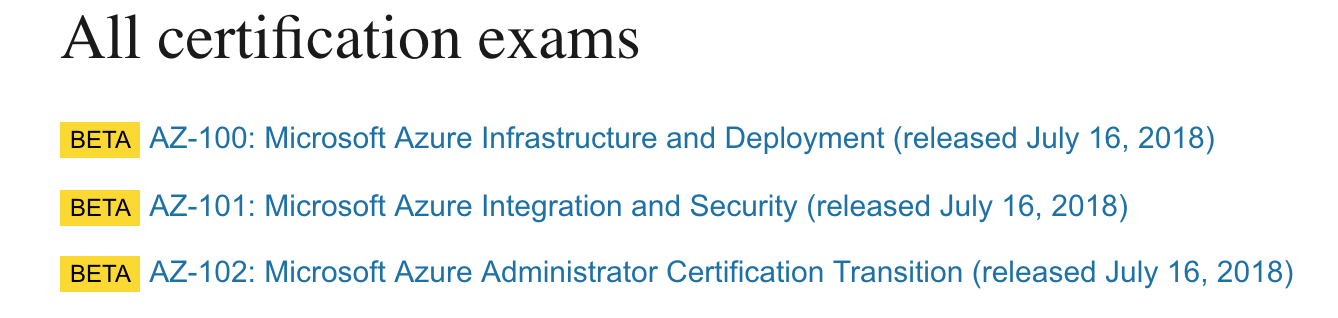
So far I only have limited information available about all the exam numbers for each individual track, as recently Microsoft has made BETA exams available for Microsoft Certified Azure Administrator track.
If you don’t have 070-533 exam certification from previous tracks then doing the following exams would would provide you Administrator track certification.
If you previously passed 070-533 exam, you can do the following Recertification/Transition exam to earn the Microsoft Certified Azure Administrator credential.
These exams are still in BETA, would commence general availability in coming months. Will keep you posted about newer exams for other tracks as we get to know more.
Introduction: LLM APIs are inherently slow—even fast models take hundreds of milliseconds per request. When you need to process multiple prompts, make parallel API calls, or handle high-throughput workloads, synchronous code becomes a bottleneck. Async patterns let you overlap I/O wait times, dramatically improving throughput without adding complexity. This guide covers practical async patterns for LLM applications: concurrent request handling, batching strategies, streaming with async generators, retry logic with exponential backoff, and production-ready patterns for building responsive AI applications. Whether you’re building a chatbot handling multiple users, a batch processing pipeline, or a real-time agent, these patterns will help you maximize throughput while keeping your code maintainable.
Async patterns are essential for building responsive, high-throughput LLM applications. Start with basic async clients using aiohttp or httpx—the performance gains from overlapping I/O are immediate. Use semaphores to control concurrency and prevent overwhelming API rate limits. Implement retry logic with exponential backoff for transient failures, and circuit breakers to fail fast when providers are down. For high-volume workloads, batch requests to amortize overhead and use priority queues to ensure critical requests get processed first. Streaming responses improve perceived latency—users see output immediately rather than waiting for complete responses. The fallback pattern across multiple providers improves reliability, though watch for subtle differences in model behavior. Monitor queue depths, latency percentiles, and error rates to tune concurrency limits. The key insight is that async isn’t just about performance—it’s about building resilient systems that handle failures gracefully and scale with demand. These patterns form the foundation for production LLM services that can handle thousands of concurrent users while maintaining responsiveness.